fzf
Previewing the contents of a file
Here we use the ls command to output the list of all txt files, then pipe that result to fzf. We want to be able to view the contents of the txt files, so we also add the --preview argument,
which requires us to give it a command to let fzf know how to preview the file. In our case, we want to see the contents of each file, so we use the cat command along with the special fzf variable, {}, which presents the currently selected file.
ls *.txt | fzf --preview 'cat {}'
Multi-select
If you want to select multiple items, you can use the --multi option
Input:
foo
bar
baz
To open an fzf window that allows you to select multiple items, you can do this, and press TAB to select multiple items, then ENTER to confirm your selection:
echo "$input" | fzf --multi
Previewing what you’ve selected when using --multi
It’s usually helpful to see all of the items you’ve selected in a multi-select window, so you can add the --preview option to do so:
echo "$input" | fzf --multi --preview 'cat {+f}'
The --preview option requires that you pass a command to it, which will be used to populate the preview window. In our example above, we use the cat command along with a special fzf variable, {+f}, which points to a temporary file that holds all of the items you’ve selected.
Output a particular field with --bind
Given the following input text of tags and some dates, you can use the --bind option to specify what part of the selected text to output when you press ENTER:
Input:
2.21.1-alpine (2024-09-09T21:32:12.043063Z)
2.21.1 (2024-09-09T21:32:11.753765Z)
2.21.1-linux-amd64-alpine (2024-09-09T21:31:02.846727Z)
2.21.1-linux-amd64 (2024-09-09T21:30:51.405514Z)
2.21.0-alpine (2024-08-26T18:54:20.227239Z)
2.21.0 (2024-08-26T18:54:19.876539Z)
2.21.0-linux-amd64-alpine (2024-08-26T18:53:23.437468Z)
2.21.0-linux-amd64 (2024-08-26T18:53:12.19832Z)
2.20.3-alpine (2024-05-20T21:37:43.797411Z)
You can use the fzf --bind option to set a keybinding to perform an action. For our purposes, we want to use the ENTER key, which is the default selection key.
echo "$input" | fzf --bind "enter:become(echo {1})"
2.21.2
Resize the window (and other decorations)
fzf by default takes up the entire screen, but you can resize it by using the --height option:
Input:
2.21.1-alpine (2024-09-09T21:32:12.043063Z)
2.21.1 (2024-09-09T21:32:11.753765Z)
2.21.1-linux-amd64-alpine (2024-09-09T21:31:02.846727Z)
2.21.1-linux-amd64 (2024-09-09T21:30:51.405514Z)
2.21.0-alpine (2024-08-26T18:54:20.227239Z)
2.21.0 (2024-08-26T18:54:19.876539Z)
2.21.0-linux-amd64-alpine (2024-08-26T18:53:23.437468Z)
2.21.0-linux-amd64 (2024-08-26T18:53:12.19832Z)
2.20.3-alpine (2024-05-20T21:37:43.797411Z)
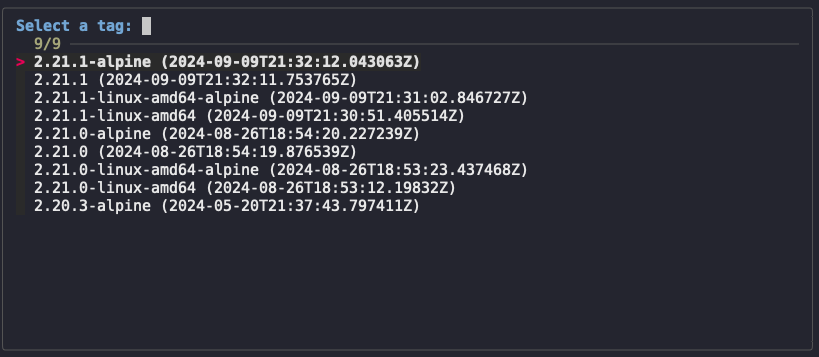
echo "$input" | fzf --height 20 --reverse --border --prompt "Select a tag: "